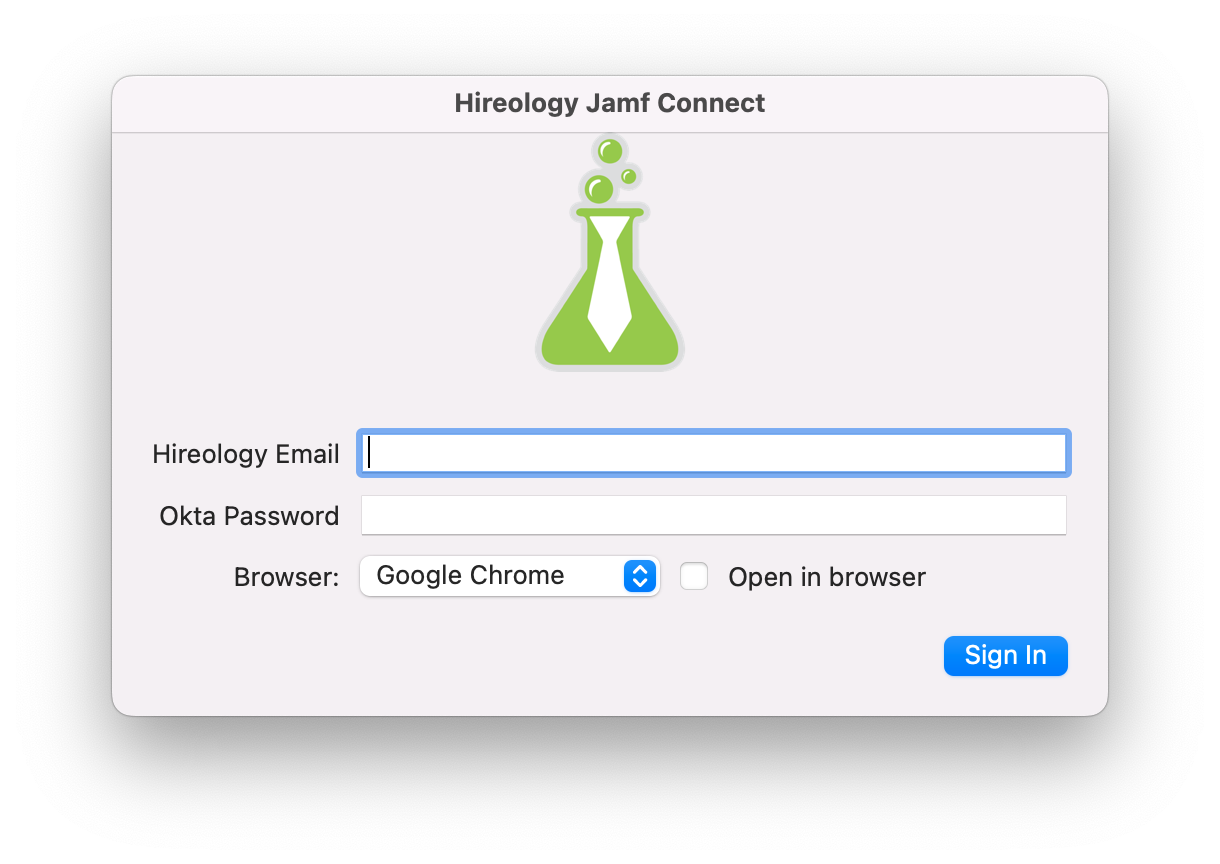
- Sign in with your Okta credentials at the following prompt
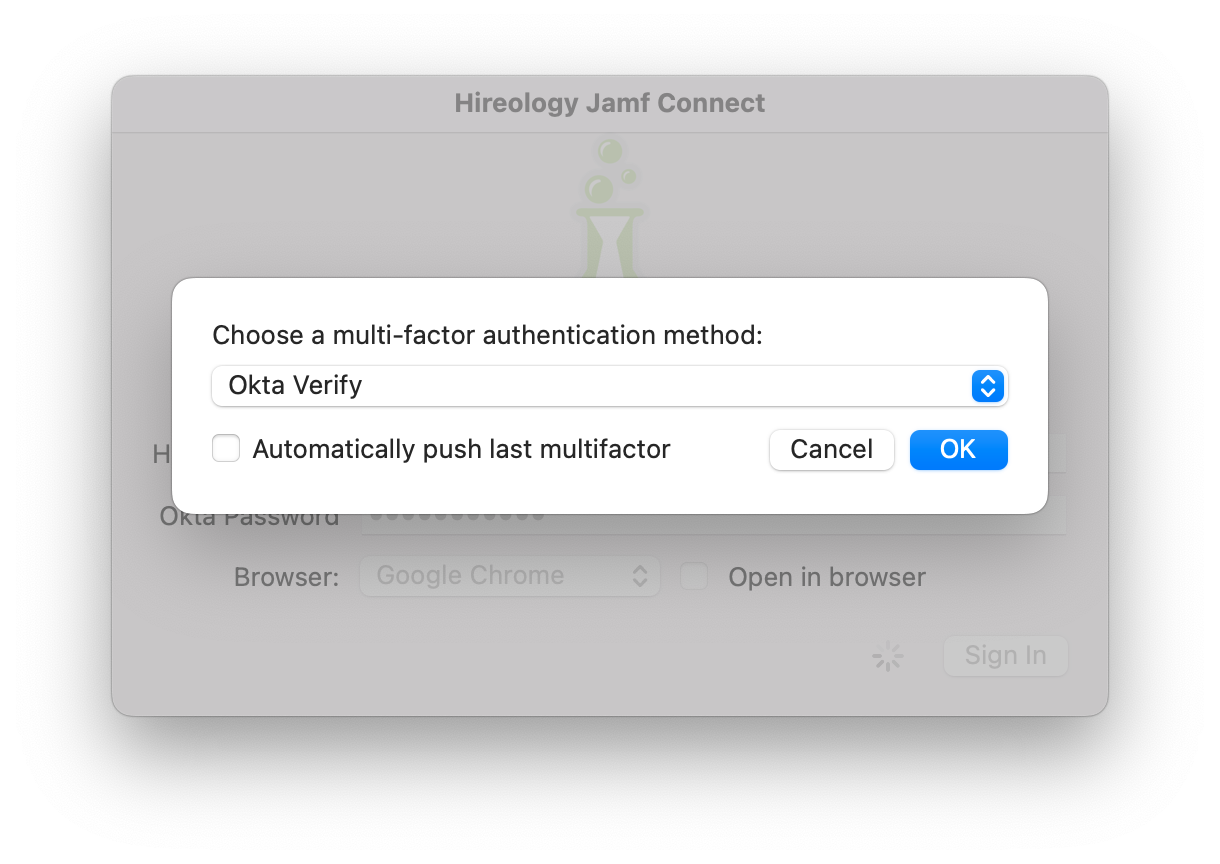
- Select your multifactor method (SMS/Google Authenticator/Okta Verify).
-
If your method is Okta Verify, after you click ok the program will hold on screen until you go to your app and click the "Yes, it's me" option.
-
If your method is SMS or Google Authenticator, an enter code option will come up.
-
-
- **If your Okta and computer passwords are different, you will see the following prompt. Enter your existing computer password into the field and click "Sync". This step will remove your existing computer password and set it to be match your okta password.
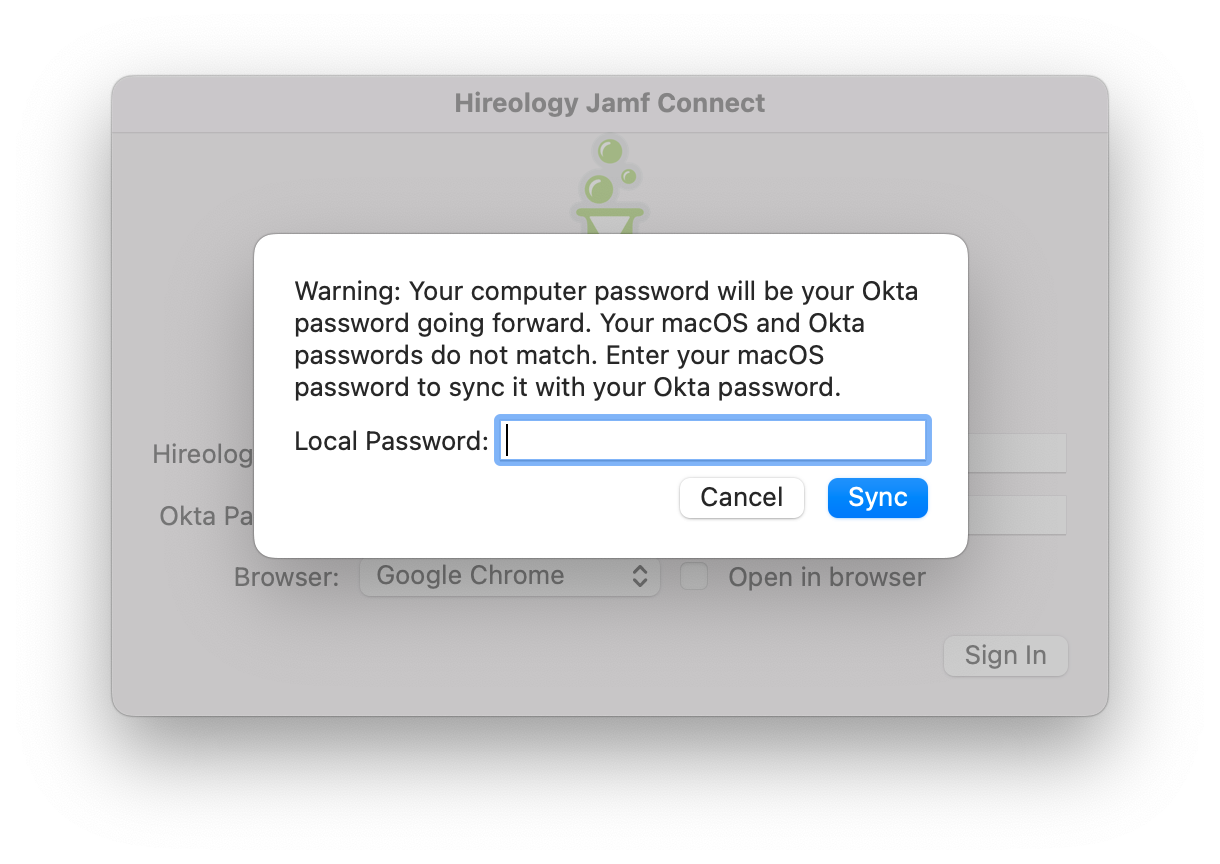
- **If your Okta and computer passwords are different, you will see the following prompt. Enter your existing computer password into the field and click "Sync". This step will remove your existing computer password and set it to be match your okta password.
- Your computer password will now be your Okta password. If you reset your Okta password you can expect to see prompts to change your computer password following immediately after.